
Layouts and Zones
The eight built-in Framis layouts and how their zones are arranged.
Every Framis layout is made of one or more zones. A zone is a target rectangle on the screen, defined as a normalized region of the active display.
The eight built-in layouts
Framis ships with eight presets out of the box. Choose one from the menu bar and the floating zone overlay updates instantly.
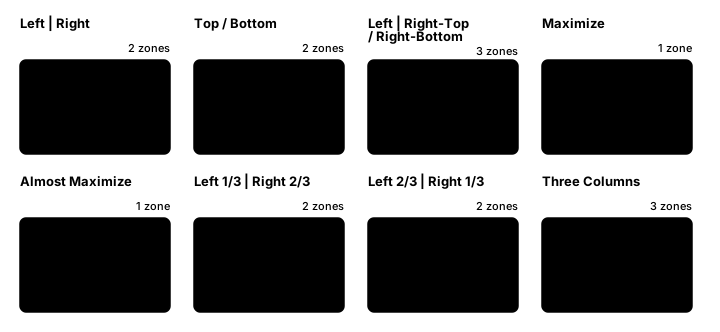
| Layout | Zones | Best for |
|---|---|---|
| Left | Right | 2 (50 / 50 split) | Editor + browser. The default for one-thing-at-a-time work. |
| Top / Bottom | 2 (50 / 50 split) | Long form above, terminal or chat below. |
| Left | Right-Top / Right-Bottom | 3 (left full, right top, right bottom) | A main work area on the left, two stacked context panes on the right. |
| Three Columns | 3 (33 / 33 / 33) | Code, docs, preview. Three equal streams of attention. |
| Left 1/3 | Right 2/3 | 2 (33 / 67) | Narrow nav on the left, wide canvas on the right. |
| Left 2/3 | Right 1/3 | 2 (67 / 33) | Main workspace on the left, reference rail on the right. |
| Almost Maximize | 1 (centered with margin) | Full-screen feel that still leaves a margin around the window. |
| Maximize | 1 (edge to edge) | One window, edge to edge. |
Choosing the right layout
Pick the layout based on how many windows need attention and how large each one should feel. The most effective layout is usually the one that makes your primary app dominant and secondary apps obvious but unobtrusive.
If you are unsure where to start, use Left | Right first. It is easier to scan, easier to refill, and fits most day-to-day workflows.
Switching layouts in Arrange Mode
While in Arrange Mode, press [ or ] to cycle to the previous or next layout. The zone overlay updates immediately; windows you have already placed stay where they are, and you keep assigning windows into the new zones.
Multiple displays
Each display keeps its own layout. When you have more than one screen connected, the Layout menu in the menu bar groups the presets under a submenu per display, named after the display, so you can set a different layout on each one.
When you enter Arrange Mode, the zone overlay appears on every display at once. Zone numbers continue across screens rather than restarting per display — see Keyboard Shortcuts for how the numbering works.