
Arrange Mode
The dedicated mode for organizing your entire workspace in one session.
Arrange Mode is Framis’s primary interaction. It is a dedicated mode for arranging your workspace, kept separate from normal window use so it never gets in the way.
Activate the mode
Press the global hotkey to enter Arrange Mode. The default binding is ⌃⌥F (Control + Option + F). You can change it in Framis settings.
A frosted glass overlay appears across the active display with numbered zones for the current layout.
You can also open and close Arrange Mode from the Framis menu bar item. It reads Arrange Mode when the overlay is closed and Exit Arrange Mode while it is active.
Place a window
- Press a number key (
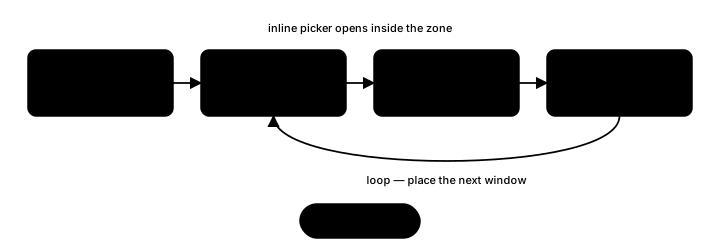
1,2,3, …) for the zone you want to fill. - An inline popup opens inside that zone with the list of open windows.
- Navigate the list with
↓/↑(or just start typing to filter). - Press
Enterto assign the highlighted window to the zone.
Prefer the mouse? Click a zone to open its picker, then click a window in the list to assign it.
After placement the mode stays active so you can immediately place the next window in another zone. There is no need to re-trigger the hotkey for each window.
Switch layouts without leaving the mode
[— previous layout]— next layoutTab/Shift+Tab— move to the next or previous zone
The overlay switches to the new layout right away. Windows you have already placed stay where they are, so you can compare layouts and keep filling in the remaining zones.
Peek behind the overlay
Hold Option while in Arrange Mode to temporarily hide the frosted glass overlay so you can see what is behind it. Release Option and the overlay comes back. This is handy for checking a window’s current contents before you decide where to place it.
Exit the mode
Esc— leave Arrange Mode (or close the inline popup if one is open).
Why a dedicated mode
By default, Framis does not hook drag, snap, or edge gestures. The tool only exists while Arrange Mode is active, which means:
- Normal mouse and keyboard use is left untouched.
- There are no accidental layout changes when you drag a window casually.
- You enter the mode when you mean to arrange — and leave when you are done.
The one exception is the optional Drag + Scroll feature. It is off by default; once you turn it on, Framis watches window drags so it can show the zone overlay while you hold the trigger modifier.